Table of Contents
If you find yourself squinting at your iPhone, holding it at arm’s length, or reaching for your reading glasses every time a message arrives, you are not alone. The good news is that your iPhone already has a built-in way to make text bigger — you do not need to buy anything or install any app, and it takes less than two minutes.
Once you know how to make text bigger on iPhone, reading messages and emails becomes comfortable again — and this guide walks you through it slowly, one tap at a time. It works on any iPhone running a recent version of iOS, and you can change it back just as easily if you do not like the result.
The quick answer
In a hurry? Here is the fastest route:
- Open the Settings app (the grey icon with gears).
- Tap Display & Brightness. On the newest iPhones this menu is called Appearance.
- Tap Text Size.
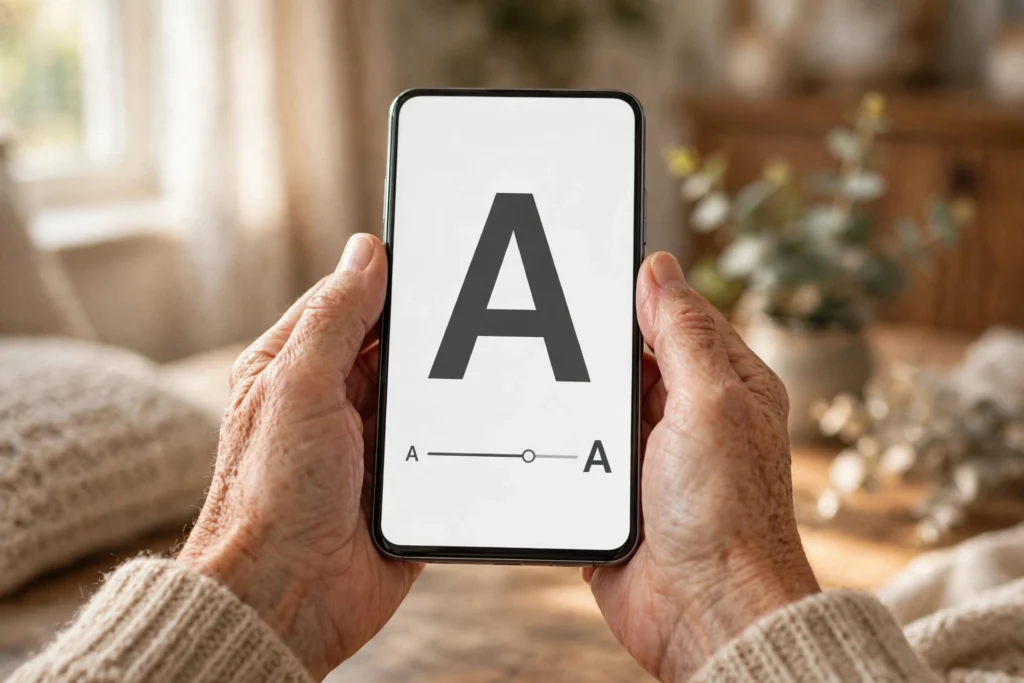
- Drag the slider at the bottom towards the right to make the text bigger. The example text on the screen changes as you drag, so you can stop at a size that feels comfortable.
That is it. Your Messages, Mail, Contacts and many other apps will now use the larger text size. If you would like the text even bigger, keep reading — there is a second setting made exactly for that.
How to make text even bigger
If you dragged the slider all the way to the right and the text is still too small, do not worry. Apple hides an extra set of larger sizes in the Accessibility settings, which are designed for people who need bigger, clearer text.
- Open Settings.
- Tap Accessibility.
- Tap Display & Text Size.
- Tap Larger Text.
- Turn on Larger Accessibility Sizes at the top.
- Drag the slider to the right until the text is a size you can read comfortably.
One gentle warning from Apple: if you choose the very largest sizes, some apps may become a little awkward, because buttons and menus also grow. Pick the largest size that still lets you use your favourite apps comfortably — you can always adjust it later.
Make the text bolder, too
Bigger is not the only thing that helps. Making the letters thicker can make them noticeably easier to read, and it is on the same screen:
- Go to Settings > Accessibility > Display & Text Size.
- Turn on Bold Text.
Your iPhone may quickly restart once to apply this change. That is normal — give it a few seconds and everything will come back exactly where you left it, just bolder.
While you are on this screen, you can also turn on Increase Contrast, which makes text stand out more clearly from its background.
Want everything bigger — icons and buttons as well?
If the app icons and buttons on your home screen also feel small, you can enlarge the whole display:
- Open Settings.
- Tap Display & Brightness (called Appearance on newer iPhones).
- Scroll down and tap Display Zoom.
- Choose Larger Text, tap Done, then tap Use Zoomed to confirm.
Your iPhone will restart briefly, and when it comes back, everything — text, icons and buttons — will be a little bigger.
A quick trick for changing text size any time
Once you are happy with your basic setting, you can add a shortcut so you can change text size quickly without digging through Settings:
- Go to Settings > Control Centre and add Text Size to your controls.
- Whenever you are reading something, swipe down from the top of the screen and tap the AA symbol.
- Drag the slider up or down. You can even choose whether the change applies to just the app you are using, or to all apps.
How to make text bigger on iPhone websites in Safari
The settings above change text in your apps. Websites are separate — but Safari, the iPhone’s web browser, has its own simple controls:
- Open any website in Safari.
- Tap the AA symbol at the left of the address bar.
- Tap the larger A on the right a few times until the text is comfortable to read. Safari remembers your choice for that website.
To make every website bigger at once, go to Settings > Safari (on newer iPhones, Settings > Apps > Safari), tap Page Zoom, and choose a larger percentage such as 125% or 150%.
Still too small? Two more things to try
Check the app’s own settings. A few apps ignore the iPhone’s text size and have their own setting instead. Open the app, look in its Settings for “Text Size”, “Font Size” or “Display”, and adjust it there.
Make one single app bigger. If just one app is hard to read, you do not have to enlarge everything. Go to Settings > Accessibility > Per-App Settings, tap Add App, choose the app, then tap it and select Larger Text. Only that app changes.
Frequently asked questions
Will bigger text work in WhatsApp and Facebook?
Many popular apps follow your iPhone’s text size setting automatically, so they will get bigger too. A few apps have their own text settings inside the app. If one app still looks small, check inside that app’s settings for a text or display size option.
Can I make the text bigger in only one app?
Yes. Go to Settings > Accessibility > Per-App Settings, tap Add App, choose the app, then tap it and select Larger Text. You can also use the Control Centre trick above and choose “This App Only”.
I made the text too big. How do I change it back?
Just go back to the same slider — Settings > Accessibility > Display & Text Size > Larger Text — and drag it back to the left. Nothing can break; this setting is made to be adjusted.
Does this also work on an iPad?
Yes, the steps are nearly identical on an iPad, and the screens are even bigger, so it can make reading very comfortable.
You did it
Pick up your phone and read a message or an email now — it should feel easier on your eyes straight away. Small changes like this are the whole point of My Easy Tech Guide: your technology should adapt to you, not the other way round.
Now that you can read every message clearly, it is worth knowing how to spot the dangerous ones. Read our guide to scam text messages: 7 warning signs and exactly what to do — it could save you or someone you love a great deal of trouble.
This guide is based on Apple’s official instructions for adjusting display and text size. You can read Apple’s own version on the Apple Support website.